
Comprehensive Station Control Desktop
As I have gotten older, I have noticed that sometimes I don't start my various ham radio apps in the proper order, and then can't figure out why something is not working properly. So first I created a text file as a reminder of what order they needed to be started in. Then I got the bright idea to improve the process by creating a series of commands that I could copy-paste into a terminal window. So far, so good. Next I decided to automate the process, and then create an icon that I could pin to my taskbar at the bottom of my Linux Mint window.
That worked great. But I'm never satisfied with anything very long — did I mention in another post that I am ADHD and a bit of a perfectionist? If not, let me tell you now, I am. So I started adding a couple of new items. And then it started getting a life of its own, until I added another app that needed the UDP port from WSJT-X. CQRLOG and GridTracker both needed it, and I wanted to get JTAlert working. I was getting in over my head now, trying to figure out how to create a UDP port replicator. And then I was reminded that I had AI running for my Home Assistant software. So I enlisted its help. But it was rather slow, and I had to keep copy-pasting back and forth between a PuTTY SSH window into the AI server and the local Linux Mint terminal window. This was getting cumbersome. But it works.
Next step, I decided to use a free AI trial for a program called Cursor, which I selected after some research. The advantage of Cursor is that, first of all, it is a local app on your machine, and if you give it permission, it will access your local files. It can read them, modify them, and save them back. It is fully capable of writing Python scripts as well as other coding languages. So the first trial was to ask Cursor to create a UDP port replicator which would receive the WSJT-X UDP port 2237 traffic and then copy it and feed it back out on port 2238 for CQRLOG and port 2239 for GridTracker. Cursor did not even break a sweat. That task took about 2 minutes, and it changed the settings in CQRLOG and GridTracker in the process. Wow!
OK, a couple of weeks passed and it was working perfectly. And then I discovered a new logging program being marketed by World Radio League. It had lots of additional features — analytics, maps, and award tracking, to name a few. But I wasn't sure I wanted to ditch CQRLOG, and it needed to use the WSJT-X UDP port. OK, if Cursor could make two, why not three, right? No sweat. A few minutes later and I had another port. While I was at it, I asked Cursor to fix my menu-driven file to add WRL and start it at the end of the other apps. OK, I was beginning to love this. What else could I add to the mix? Well, I have never been able to be devoted enough to get good at CW. Maybe Cursor could help. That actually took a little longer. But about a half hour later I had my own CW Terminal running. Now the ball was rolling and the creative juices were flowing. I began to come up with all kinds of thoughts about things I wanted to add.
I'll skip the rest of the melodrama and jump to the end. I now have the program completely automated. It runs as a browser window in Chrome (or Firefox, if Chrome is not installed). It has lots of features and new apps, as well as built-in interfaces to other existing software available on the internet. I have decided to give it away free once it is fully debugged. I currently have 6 beta testers trying it out. Here is a marketing flyer to help you see what it is and does today.
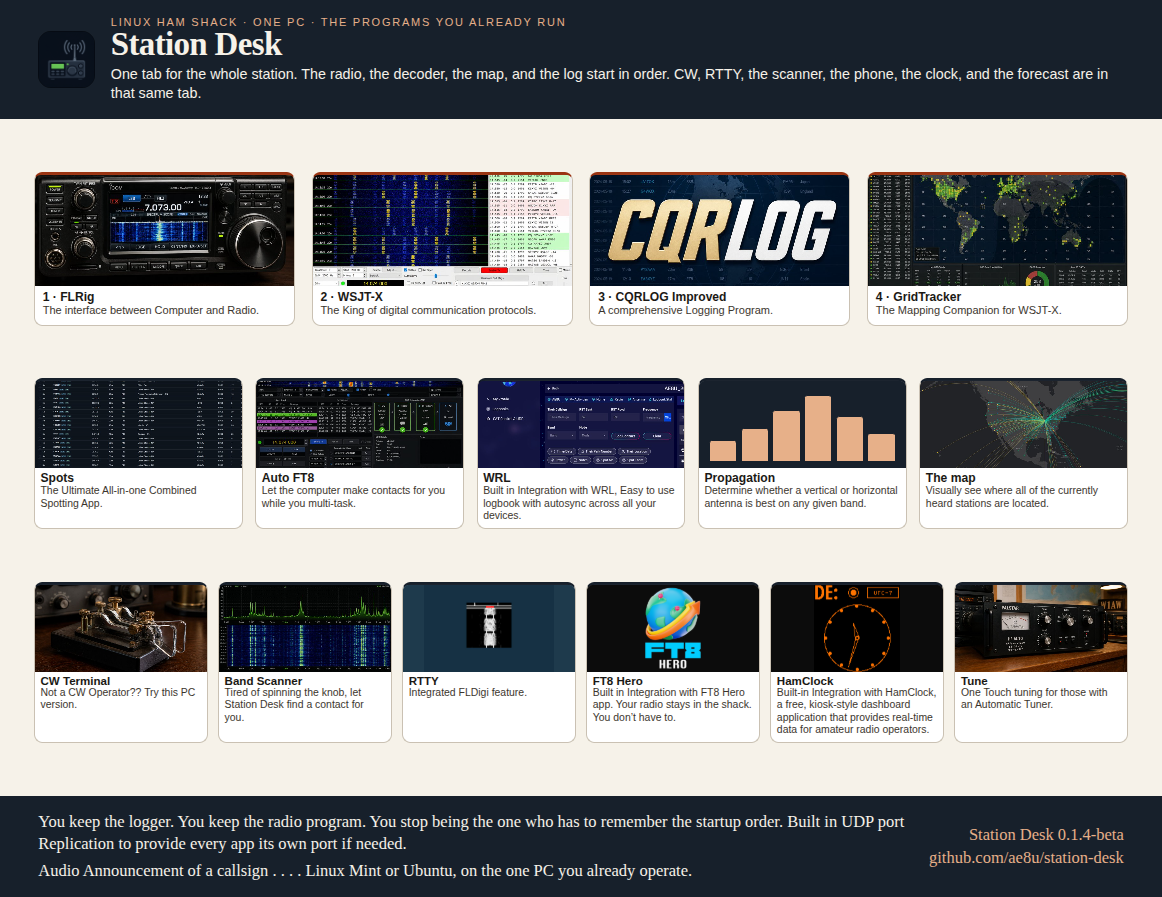
It will soon be available on GitHub. Once installed, there is an icon which you can pin to the Linux Mint taskbar. Clicking the icon starts the program, opens Chrome, and away you go. Just go to the Startup tab and start the apps in the proper order by clicking Start on each of the default apps' icons: first the ones that must always be running, and then any optional ones you want. Then you move to the Operation tab and away you go.
I am currently trying to work through how to automatically fill out the user's QSL card and then send it via email every time you add a new QSO to CQRLOG. But this presents several new challenges. First of all, the user needs QRZ logbook access in order to get an email address for the contact. Second, every user has a different QSL card design with different field sizes and locations. Third, it needs to be an option — the user may not want to send a QSL card to every contact, or for some contacts may want to send by post rather than by email. So I am trying to work through how I might make this process universal so that I can add it to the program. But for now, it is working and being tested on my system.